
TV Setup
Connect Pair and Play to Your TV
Use Pair and Play to turn a compatible TV or tablet into a SILENT SALES SCREEN™ display in minutes. Choose the setup that works best for your business.
Our recommendation: Google TV is the easiest and most predictable option.
Already have a compatible TV browser or tablet? You may be able to connect without purchasing another device.
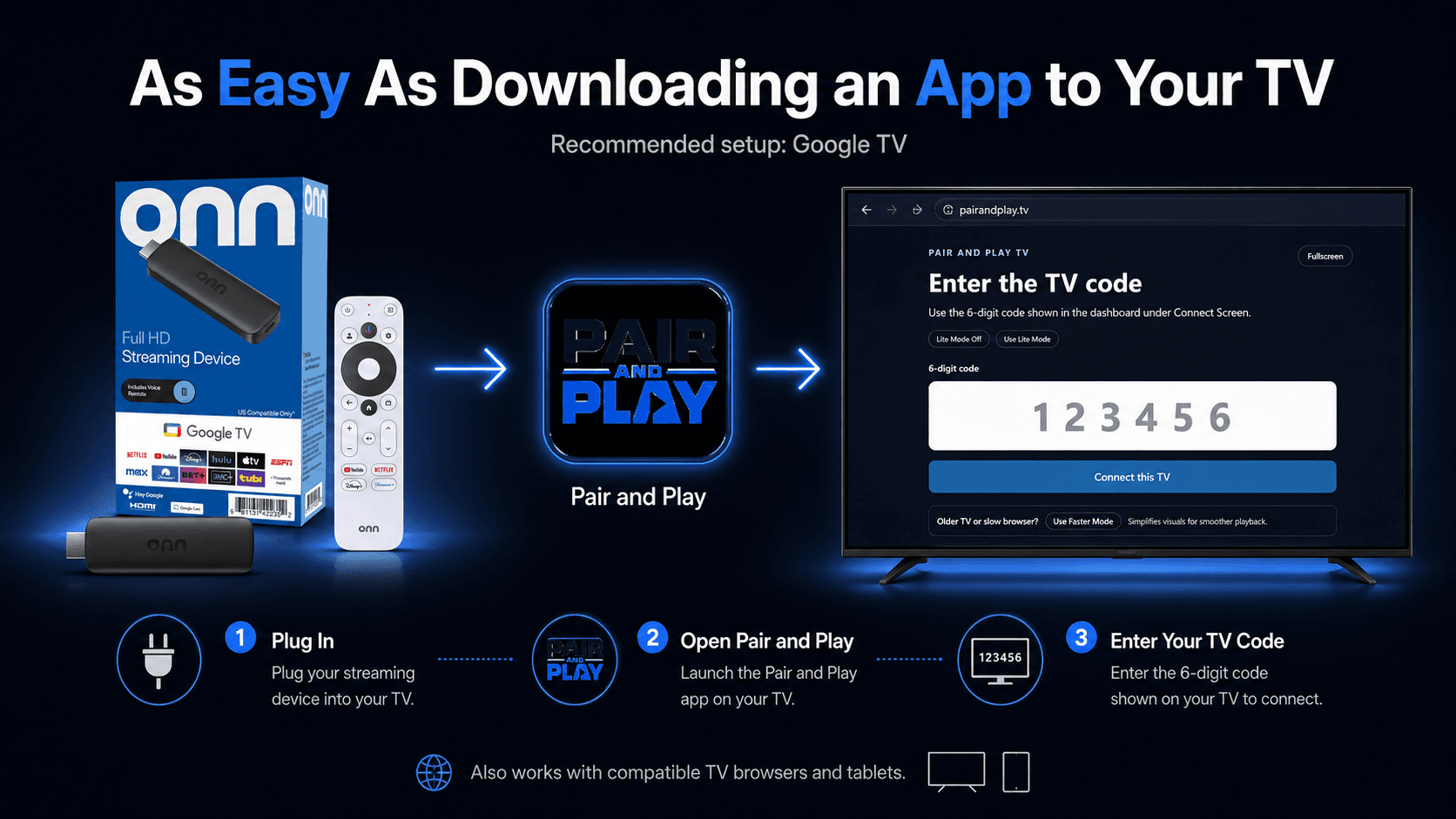
The Simplest Way to Get Started
Already have a Google TV or Android TV device? Search for Pair and Play in the Google Play Store.
Need a device? Connect an affordable Google TV streaming device to an available HDMI port on your television. Recommended devices are available for about $30.
Plug In → Install Pair and Play → Enter Your Dashboard Code → Play
Plug In
Plug the Google TV streaming device into an available HDMI port, connect it to power, complete setup, and sign in with a Google account.
Install Pair and Play
Open the Google Play Store, search for Pair and Play, then install and open the app.
Get Your Dashboard Code
Open the Pair and Play dashboard on a phone, tablet, or computer. Create or open the screen you want to connect, then copy its six-digit connection code.
Connect and Play
Enter the six-digit code from your Pair and Play dashboard. Confirm or select the playlist, and begin playing.
Device requirements
- • Television with an available HDMI port
- • Reliable Wi-Fi
- • Google account
- • Nearby electrical power
Third-party device sold separately. Price and availability may change. Pair and Play is not affiliated with Walmart or onn.
Setup Option 2
Use a Compatible TV or Tablet Browser
A separate streaming device may not be necessary when your television or tablet has a compatible modern browser.
Open the browser and visit PairAndPlay.tv.
Enter the six-digit code from your Pair and Play dashboard.
Setup Option 3
Already Have a Compatible Fire TV?
Pair and Play is also available through the Amazon Appstore. Search for Pair and Play TV and install the app. Enter the six-digit code from your Pair and Play dashboard to connect the screen.
Additional TV Apps
More platform options are under review.
Pair and Play apps for Samsung and LG have been submitted for review. You do not need to wait—Google TV and compatible browser playback are available today.
Reliable Playback
Keep Your Screen Ready to Play
- • Connect the streaming device to reliable electrical power.
- • Confirm that the television remains on the correct HDMI input.
- • Use a stable Wi-Fi connection.
- • Review television and streaming-device sleep settings.
- • Review energy-saving, screen-saver, and ambient-mode settings.
- • Reopen Pair and Play after device or operating-system updates when necessary.
- • Use the reconnect process or contact Pair and Play support if a screen becomes disconnected.
FAQ
TV setup questions, answered.
Compatibility depends on the device and browser. Google TV remains the recommended choice when you want the most predictable setup.
Do I need a special television?
You do not need a commercial digital-signage television. You need a compatible browser or a supported streaming device and an available HDMI port. For the easiest and most predictable setup, Pair and Play recommends Google TV.
Can I use a TV I already own?
Yes, when it has a compatible modern browser or can use a supported Pair and Play app. Browser capabilities vary by television manufacturer and model.
What device does Pair and Play recommend?
Pair and Play recommends an affordable Google TV streaming device for the simplest and most predictable television setup.
Can I use Pair and Play on a tablet?
Yes, a compatible tablet browser can open PairAndPlay.tv. Modern tablets generally include browsers capable of opening web applications, although device and browser compatibility can vary.
Does Pair and Play work with Amazon Fire TV?
Yes. On a compatible Fire TV, find Pair and Play TV in the Amazon Appstore and install it. Enter the six-digit code from your Pair and Play dashboard.
Are Samsung and LG apps currently available?
No. Pair and Play apps for Samsung and LG have been submitted for review, but they are not currently presented as available. Google TV, compatible browser playback, and Amazon Fire TV are available today.
Where do I find the six-digit pairing code?
The code is shown in the Pair and Play dashboard when creating or connecting a screen. Enter that code into the Pair and Play TV app or browser player.
What happens after I enter the pairing code?
The selected playlist connects to the screen and begins playing. If the screen is not ready, confirm that it has a playlist with published content in the dashboard.
Can I change the playlist later?
Yes. Manage the screen and its playlist from the Pair and Play dashboard. A connected screen receives the published playlist updates assigned to it.
Does the screen reconnect automatically?
The TV app and browser player save the paired screen session and attempt to resume it when reopened. Power, network, browser storage, device updates, or a dashboard disconnect can still interrupt the session. If prompted, use a fresh six-digit connection code from the dashboard.
Still Need Help Connecting Your Screen?
We will help you choose the right setup and get your first screen connected.